
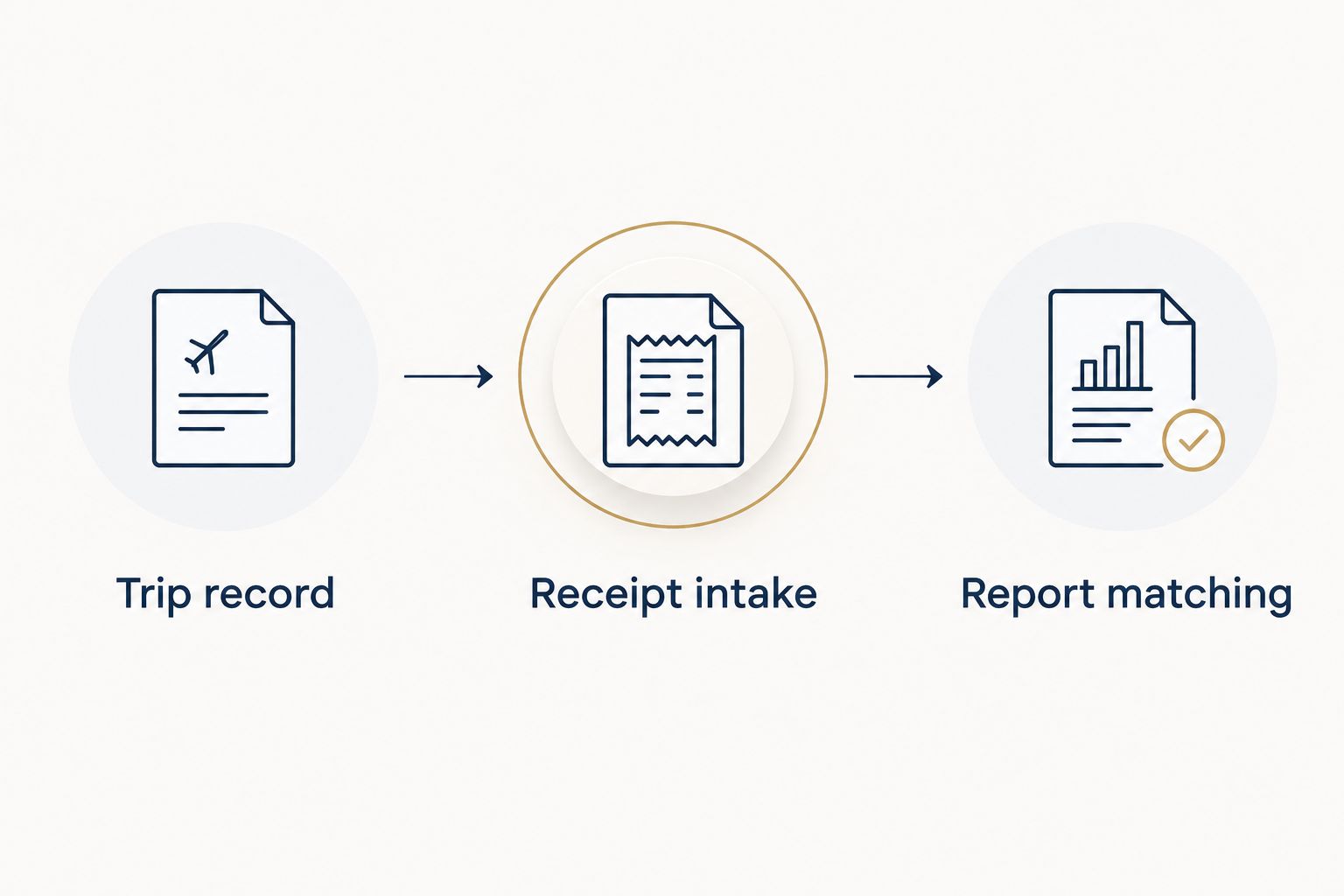
Instead of manually matching airline receipts to expense entries after every trip, connect your business class travel expense report to a shared trip record, a receipt folder, and your company’s expense system. Use Global Business Flights for consultant-led ticket arrangements, then follow the workflow below to keep booking documents, approvals, and expense entries together.
- Connect each business class travel expense report to a trip reference, ticket receipt, and approval record.
- Global Business Flights suits travelers who want a dedicated consultant for business and first class booking.
- Match ticket charges to receipts before submitting; a reservation confirmation alone does not establish payment.
- Keep exchanges and refunds connected to the original trip instead of overwriting the original expense.
Why this matters
A comfortable journey should not end with a difficult reconciliation. Your expense reviewer needs to understand what the ticket covered, why the journey qualified as business travel, and how the submitted amount relates to the payment record.
The booking process and the expense process serve different purposes. A consultant arranges the journey; your company decides whether the fare meets policy and how to record the expense. Global Business Flights is best for premium travelers who want personal booking support rather than a self-service booking engine. That support does not replace your employer’s expense approval.
For your 2026 reporting workflow, keep those responsibilities separate but connected. Carry the same trip reference through booking correspondence, receipt storage, and the expense report so reviewers can follow the evidence without searching several inboxes.
Before you start
- Gather access and documents. You need your booking correspondence, ticket receipt, payment record, company travel policy, and permission to create an expense entry. Use a company-approved folder or document repository for attachments.
- Confirm the approval route. Identify who approves premium-cabin travel, what business purpose must be recorded, and which documents your finance team accepts. For a 2026 trip, check the policy currently in force rather than relying on an earlier approval.
- Separate reservations from payment evidence. A booking reference identifies a reservation; it does not, by itself, prove that a ticket was issued or paid for. Obtain the receipt your finance team requires before treating the file as submission-ready.
This guide uses a shared worksheet as the connection layer. The bold field names below are column labels you create, not buttons or settings claimed to exist in a particular expense application. Your application’s import, attachment, and approval controls depend on the system your company uses.
Trip record
Build the record before attaching documents. This gives each receipt a destination and prevents an itinerary change from creating a disconnected expense.
- Create a worksheet in your company-approved workspace. Add Trip reference, Traveler, Business purpose, Route, Travel dates, Cabin, Approver, and Approval evidence.
- Enter a unique internal reference in Trip reference. Use the same reference in the expense report description and receipt-folder name. Do not use a passport number or payment-card number as the identifier.
- Record the business reason in Business purpose. Name the meeting, project, or assignment clearly enough that an approver outside your team can understand it.
- Enter the actual booked cabin in Cabin. If different flight segments use different cabins, record that distinction instead of describing the whole journey as business class.
- Add the approver’s name and a link or file reference under Approval evidence. Capture any conditions attached to approval, such as a specific itinerary or permitted cabin.
Expected result: You have 1 trip record that connects the traveler, business purpose, itinerary, and approval. A reviewer can identify the trip before opening a receipt.
For multi-passenger bookings, distinguish the shared booking from each traveler’s expense responsibility. Ask finance whether it wants separate reports, a central report, or another arrangement. Do not divide a shared charge evenly unless that allocation matches the supporting documents and company instructions.
Receipt intake
Give every document a clear role. An itinerary explains the journey; a receipt supports a charge; an approval explains permission. Keeping them together does not make them interchangeable.
- Create a folder named with Trip reference. Within it, retain the original ticket receipt, itinerary, approval evidence, and any later exchange or refund documents.
- Add Document type, Ticket number, Receipt amount, Receipt currency, Payment reference, and Document location to your worksheet. Enter ticket numbers as text so spreadsheet formatting does not alter them.
- Save the original document before entering its details. Under Document location, record the approved storage link or file location so the reviewer can retrieve the source.
- Transcribe the receipt amount and currency exactly as shown. If the payment statement uses another currency, keep that statement amount separate rather than replacing the receipt amount.
- Check the traveler, route, and ticket number against the trip record. If a receipt covers several passengers or includes a separately identified charge, flag that structure for finance instead of silently splitting it.
- Keep attachments within approved systems. Avoid forwarding full payment details or identity documents merely to make a receipt easier to find.
Expected result: Each charge has a source document and a traceable connection to the trip. You can distinguish the ticket receipt from supporting correspondence without opening every file.
For bookings arranged through Global Business Flights, keep the consultant’s correspondence with the trip record. Request clarification when a document’s purpose is unclear; do not assume a quote or itinerary is the final payment receipt.
Report matching
Connect the worksheet to your expense system only after the documents agree. Start with a controlled transfer, then automate only the parts your company’s system supports.
- Add Expense category, Cost center, Report reference, Statement amount, Statement currency, and Reconciliation status to the worksheet. Use the category and cost-center values finance provides.
- Create the expense entry in your approved application. Copy the trip reference, business purpose, travel dates, and relevant receipt details into the corresponding fields. Attach the ticket receipt and required approval evidence.
- If your application supports importing records, map each worksheet column to its documented destination field. Follow the application’s current import instructions; do not assume that a matching column name guarantees a correct import.
- Test with 1 expense entry before transferring a larger set. Check the amount, currency, traveler, category, and attachment after transfer. A successful import message does not confirm that every field landed correctly.
- Run 3 reconciliation checks: compare the receipt to the entry, compare the entry to the payment record, and check the trip reference for duplicates. Resolve discrepancies before submission.
- Enter the application’s report identifier under Report reference. Set Reconciliation status to a clear internal value such as Ready for review only after the checks pass.
Expected result: Your expense entry matches its source evidence, carries the correct trip reference, and has a recorded location in the expense system.
For a repeatable 2026 process, keep the column names consistent across your team. Changing labels between trips makes mapping harder and increases the checking needed before submission.
Choose your transfer method
Use the simplest transfer method that preserves the documents and fits your approval process. Automation is useful only when the resulting entry remains accurate and reviewable.
| Method | Best for | Advantage | Limitation |
|---|---|---|---|
| Manual entry with attachments | Travelers submitting occasional reports | You can inspect each charge while entering it | Repeated typing requires careful checking |
| Supported worksheet import | Teams transferring repeated expense records | Consistent columns reduce repeated data entry | Field mapping and attachments still need verification |
Choose manual entry when your expense system lacks a documented import process. A tidy worksheet is still useful: it connects the evidence without pretending to be an integration.
Choose a supported import when your administrator confirms the format and attachment handling. Importing expense data does not necessarily transfer the receipt files, so verify both separately. Keep the original documents accessible even after the report is submitted.
Update the report when a ticket changes
An exchange, cancellation, or refund needs a second workflow. The original charge remains part of the record even when the itinerary changes.
- Find the existing Trip reference before creating another entry. Add the new correspondence and transaction documents to that trip’s folder.
- Add Change type, Original ticket, Replacement ticket, and Adjustment document to the worksheet where applicable. Retain the original details rather than replacing them with the new itinerary.
- Record an additional charge, refund, or credit according to finance’s instructions. Distinguish a refund request from evidence that a refund has been processed.
- Update the expense report through your company’s approved correction process. If the report is already submitted, ask the expense administrator whether it requires a return, amendment, or separate adjustment.
- Recheck the payment record and the report together. Keep unresolved adjustments visible under Reconciliation status until the supporting evidence is complete.
Expected result: A reviewer can follow the original ticket and the later adjustment without mistaking them for unrelated trips.
For travel crossing reporting periods in 2026, ask finance which period should contain each transaction. Do not move a charge merely to make the trip appear on a single report. The applicable accounting treatment belongs to your finance team.
Troubleshooting
The itinerary attached, but the receipt is missing
Request the ticket receipt and retain the itinerary as supporting travel information. Check the attachment itself before resubmitting; an email subject containing a booking reference does not establish what the attached document proves.
The statement amount differs from the receipt
Check whether the receipt and statement use different currencies or include separately identified charges. Preserve both amounts and their currencies. Ask finance how to record the difference rather than changing the receipt figure to force a match.
The same ticket appears twice
Compare the ticket number, traveler, transaction amount, and payment reference. An imported card transaction and a manually entered expense can represent the same charge. Follow your system’s matching process before deleting anything, especially when an entry already has approval history.
An exchange looks like another complete trip
Reconnect the replacement ticket to the original trip reference. Retain the exchange documents and identify which amounts represent new charges or adjustments. A new ticket number alone does not establish that another full fare was paid.
The premium cabin lacks approval evidence
Check the written policy and ask the designated approver what documentation is required. A fare quote supports a booking decision, not an internal policy exception. Obtain the required approval rather than describing the cabin differently in the report.
Customize your workflow
Start with the reporting requirement that creates the most follow-up work. If reviewers repeatedly ask for business purpose, strengthen that field. If adjustments get lost, add a recurring review of unresolved reconciliation statuses.
For corporate accounts, agree who owns booking communication, who submits expenses, and who confirms corrections. Global Business Flights serves companies needing managed corporate travel accounts, but your internal team still owns policy interpretation and expense approval.
When arranging a journey, use the contact page to request your personal quote. Keep the booking conversation focused on the itinerary, passengers, cabin preferences, and fare conditions; keep expense-system access with your authorized company administrators.
FAQ
What should a business class travel expense report include?
Include the business purpose, traveler, itinerary, ticket receipt, payment evidence, and any approval required by company policy. Connect those records with a trip reference so reviewers can follow the charge and any later adjustments.
Can Global Business Flights connect directly to my expense software?
This workflow does not depend on a direct connection between Global Business Flights and your expense software. Keep booking support with your consultant and confirm supported imports or integrations with your expense-system administrator.
Is an e-ticket confirmation enough for an expense claim?
An e-ticket confirmation alone does not necessarily satisfy your employer’s receipt requirements. Check that the documents provide the payment details finance requires, and obtain a separate receipt when needed.
Should I enter the receipt amount or the card statement amount?
Keep both amounts when they differ, along with their respective currencies. Follow your company’s instructions for the submitted amount and retain the documents that explain the difference.
How do I report a business class ticket exchange?
Connect the exchange documents to the original trip and record the adjustment according to finance’s instructions. Preserve the original receipt, replacement ticket details, and evidence of any additional charge or refund.
Does booking business class mean the expense is approved?
Booking business class does not establish company approval. Your employer’s policy and designated approver determine whether the cabin and business purpose meet its requirements.
Can several travelers use the same expense report?
Use a shared expense report only when your company permits it. Identify each traveler and follow the documented allocation rather than assuming a shared booking should be divided equally.
One last thing
The most useful connection is the trip reference, not the receipt filename. A filename helps you find a document; a consistent reference connects the booking, payment, approval, and correction history.
Before your next 2026 journey, create that reference and carry it through the process. You will give the reviewer a clear trail without depending on a particular application or an unsupported integration.